Troubleshooting
Most on-site problems come down to power or Wi-Fi. Work through these in order.
Is it powered?
Nine times out of ten a device that has gone quiet has simply been unplugged or switched off. Check the lead is in and the wall switch is on. This is exactly why the power step asks you to secure the lead and cover the switch.
Check the Wi-Fi icon
The Wi-Fi icon on the device screen works just like the one on your phone: full bars is a strong connection, fewer bars is weaker, and greyed-out bars with a line through them means it is not connected.

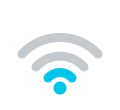
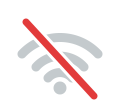
If the signal is weak, move the device closer to the router (or add a 2.4 GHz access point). If it shows not connected, run through the steps below.
Switch it off and on
Switch the device off and on at the wall. You should see the boot sequence:


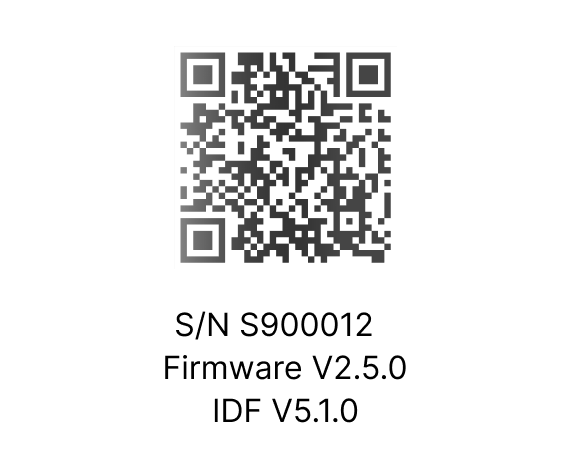
Once it finishes booting it should start showing live readings.
Wi-Fi never configured
If the device shows the pairing screens instead of live data, it never made it onto Wi-Fi. Run Register and connect again: hold the red button to re-enter pairing mode and reconnect.
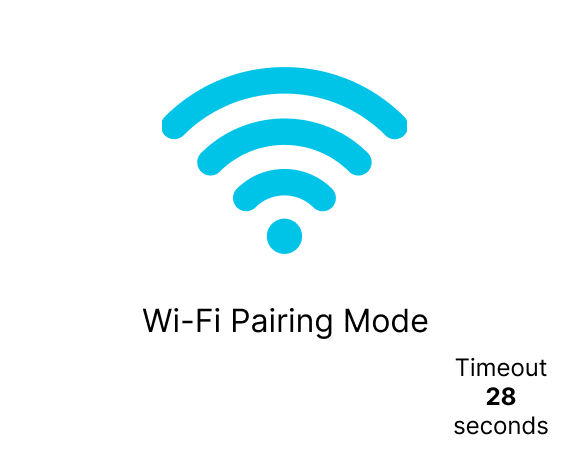
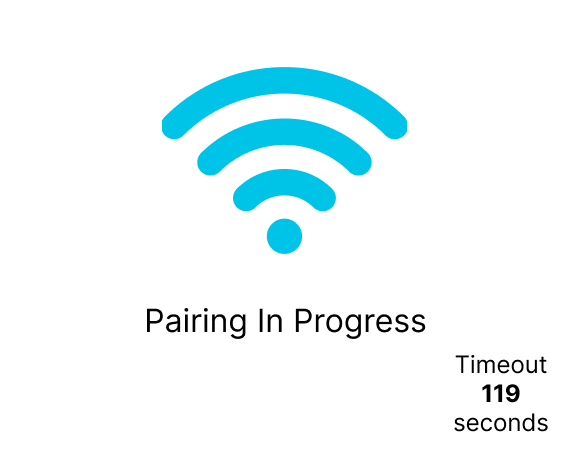
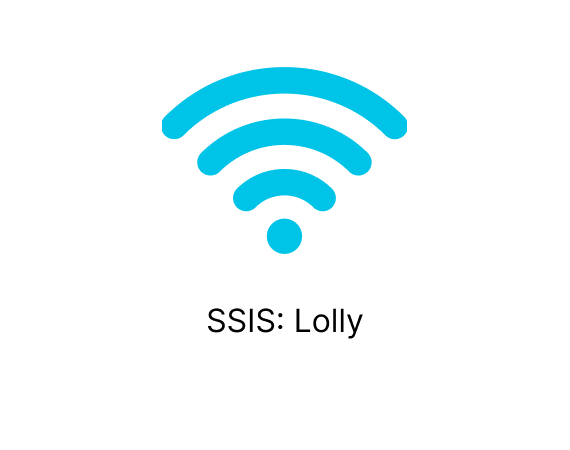
Remember the network must be 2.4 GHz with a plain name and password. Enterprise or captive-portal Wi-Fi will not connect. See Network requirements.
Get help
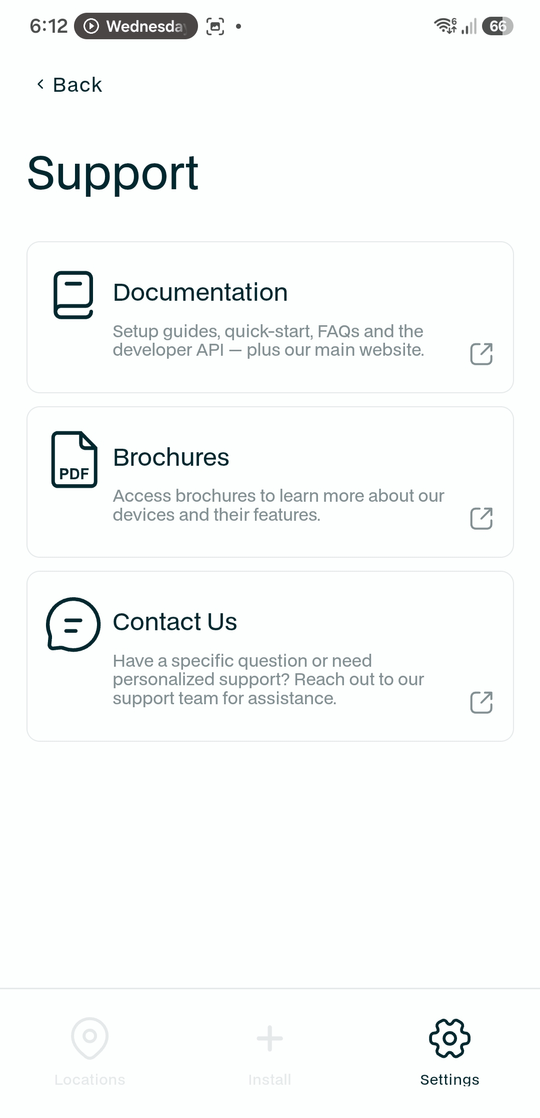
The app has help built in. Tap Settings, then Support, for:
- Documentation - these guides, the quick start, FAQs and the developer API (opens docs.monkeytronics.co.nz).
- Brochures - the product brochure for each device.
- Contact Us - reach the support team directly.
You can also report an issue at the Service Desk (https://service-desk.monkeytronics.co.nz) or email support@monkeytronics.co.nz. We are happy to help over email, phone or video call.